How to apply for a LINE Official Account: we opened one, and these are the four places you'll get stuck
Applying for a LINE Official Account is free and takes about 15 minutes, but one option can't be changed once you click it. Choose wrong and you have to start over with a new account. We went through the whole process with a brand-new account and wrote up the four places you'll get stuck, plus the new pricing as of November 2026.
Applying for a LINE Official Account isn't hard in itself: it's free, you log in with your own LINE account, fill in five fields, and you're done in about 15 minutes.
The hard part is that in a few places the screen gives you no warning and shows no error when you get it wrong. You only find out months later, when you want to connect a booking system or switch vendors, that you chose wrong at the start.
In November 2026 we went through the entire process with a brand-new account and took a screenshot of every step. This article covers the four places you'll get stuck; if you'd rather follow along screen by screen, go straight to 5 steps to open a LINE Official Account (screenshots at every step)。
The short version
- Opening an account is free, and the Light plan costs NT$0 per month
- Log in with the owner's own LINE account, not an employee's
- When you enable the Messaging API, enter your own shop name as the "provider":this can't be changed once selected
- New accounts send canned auto-replies by default; turn them off before connecting a system
- When a vendor sets things up for you, add them as an admin instead of passing keys around
Sticking point 1: the "provider" can't be changed once you click Agree
Once your Official Account is open, connecting a booking system or AI customer service takes one more step: go to "Settings → Messaging API" and click "Enable Messaging API". The Messaging API is the switch that lets external systems send and receive messages through your Official Account.
Clicking it opens a window called "Select a provider".
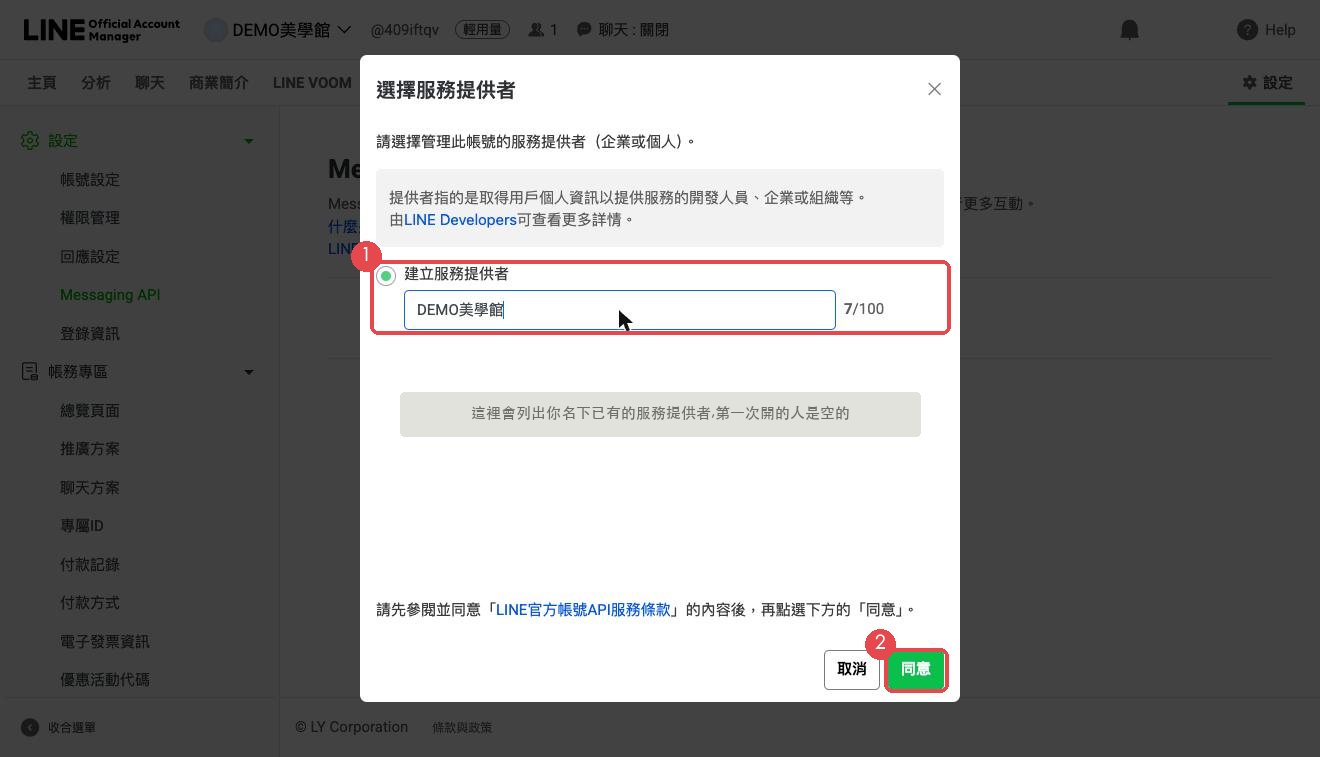
The provider is the record of who this account belongs to. LINE's developer documentation is blunt about it: once assigned, it can't be changed or removed.
Why this matters: the ID LINE assigns to each customer is tied to the provider. The same customer has a different ID under each provider. So if your account sits under a vendor's provider and you one day want to switch vendors, the entire mapping of which ID belongs to which customer becomes useless, and your booking records and member data can no longer be matched up.
LINE's own documentation also flags creating an account under a managing vendor's name as a case that needs particular care.
What to do: choose "Create a provider" and enter your own shop or company name.Don't pick any vendor's provider, including the one building your system.
What if you chose wrong? Your only option is to open a new Official Account, and all your existing friends have to add it again.
Sticking point 2: on your first visit to the admin console, "Agree" does nothing
After the account is created, your first visit to the admin console opens with a page asking you to agree to LINE's use of your information. You have to scroll to the bottom and click "Agree" to get in.
When we opened ours, the button did nothing at all on the first click, and refreshing the page left us on the same screen. About a minute later we clicked again and it went through.
It looks like the account had only just been created and LINE's backend hadn't finished syncing. If this happens to you, you didn't do anything wrong. Just wait a moment and click again.
Sticking point 3: new accounts reply on their own
On a newly opened Official Account, both the "Greeting message" and "Auto-response messages" are switched on by default.
If you only use the Official Account for broadcast messages, that's fine. But once you connect a booking system or AI customer service, both sides reply at the same time: a customer taps "Book now", gets a canned message from LINE first, and then the system's reply. To the customer, it looks like the system is broken.
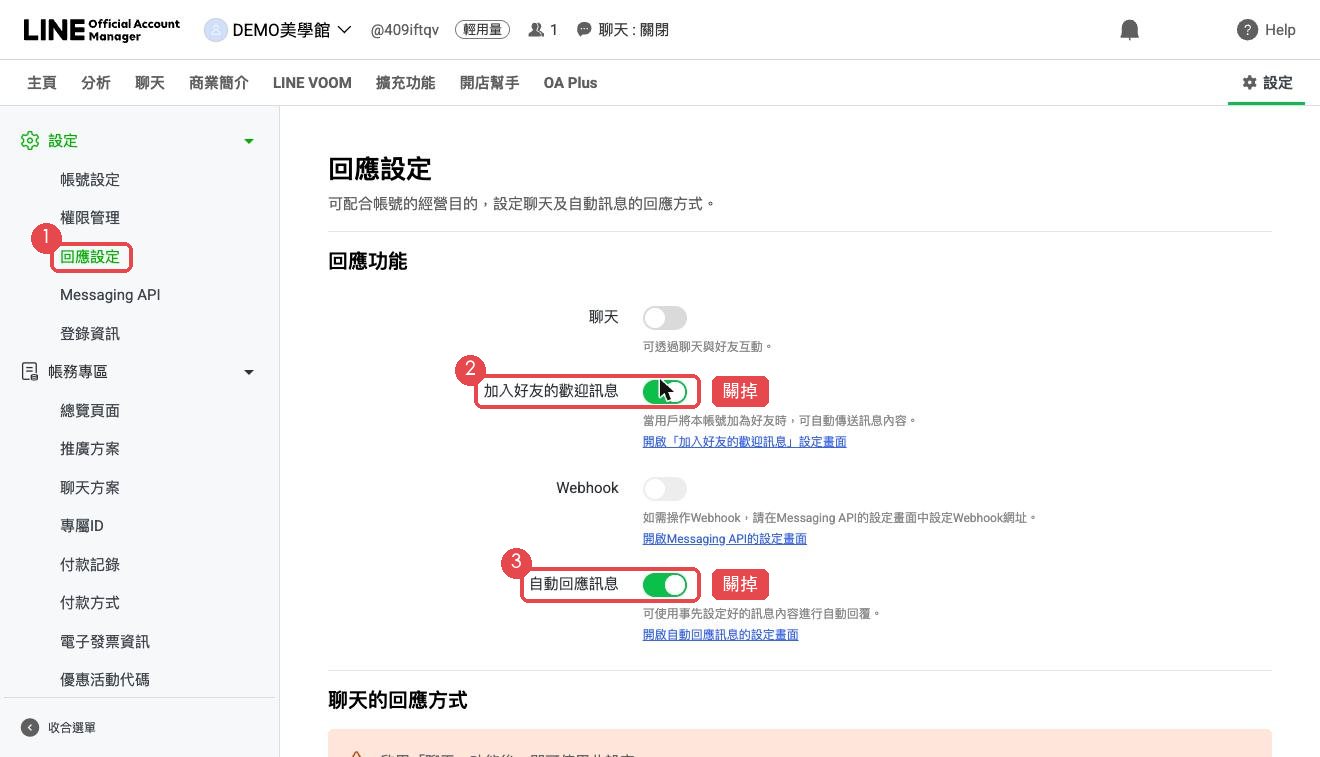
Go to "Settings → Response settings" and turn both switches off. The change takes effect immediately, with no need to save.
The "Webhook" switch on the same page is greyed out and can't be clicked until a system is connected. That's normal.
Sticking point 4: when you add an admin, the default role isn't Admin
When a vendor sets things up for you, the cleanest approach is to add them as an admin on the account and let them work in the console themselves. That way the account's keys never pass through a chat or email, and when the engagement ends you simply remove them.
The path is "Settings → Manage permissions → Add members → Issue URL". Send the URL to the other person. It's valid for 24 hours and can be used only once.
Watch the "Permission type" dropdown: it defaults to "Operator". Operators can't manage account members or access payment settings, so a vendor with this role usually can't finish the job. Change it to "Admin" manually before issuing the URL.
Conversely, if the person is just an assistant helping you reply to messages, "Operator" is enough. Don't give them Admin.
What LINE will charge you
LINE changed its pricing on November 1, 2026, and many tutorials online still quote the old numbers. Here's where it stands now:
| Plan | Monthly fee (before tax) | Outbound messages per month |
|---|---|---|
| Light | NT$0 | 200 messages |
| Medium | NT$1,000 | 3,000 messages |
| High | NT$1,400 | 6,000 messages |
What matters is which messages count.Replies to messages your customers send don't count.A customer tapping to book, choosing a time slot, and receiving a "Booking confirmed" message are all replies, so they aren't billed. What counts is what the shop sends on its own initiative: promotional broadcasts, day-before booking reminders, and return-visit reminders.
So a small shop that only uses the account to take bookings, and sends fewer than 200 outbound messages a month, will do fine on the free Light plan.
FAQ
If I log in with my personal LINE account, will customers see it?
No. Your personal LINE account is only used to log in to the admin console. Customers see the Official Account's name and profile picture.
Why shouldn't I open it with an employee's LINE account?
The account's highest level of access stays with that LINE account. If the employee leaves, you have to ask them to transfer it back. If they don't, the account is no longer in your hands.
I already have an Official Account. Do I need to open a new one?
No. First check the status under "Settings → Messaging API". If it says "Not in use", enable it as described above. If it says "In use", check whose name the provider is under. If it's a previous vendor's, think through whether you might switch vendors later before deciding to keep the account or open a new one.
Do I have to apply for a verified account (the blue badge)?
No. When setup finishes, LINE asks whether you want to apply, and you can choose "Verify later". An unverified account can still send and receive messages and connect to a booking system. The main difference is whether it shows up in search within LINE.
What is the Channel secret? Should I give it to my vendor?
It's the key external systems use to connect to your account, and it appears on the settings page once you enable the Messaging API. As a rule, don't send it over chat or email. Add your vendor as an admin and let them look it up in the console themselves.
To follow along screen by screen:5 steps to open a LINE Official Account, with a real screenshot at every step and red boxes marking where to click.
Once your account is open, if you'd like to see what a booking system looks like, head to the beauty booking setup wizard and paste in your price list. In one minute you'll have a trial shop running on your own services and prices.
We build LINE booking systems, from NT$20,000. For shops whose flow matches our beauty demo, there's a standard edition at NT$990 per month.